
Scan.
Beep.
Done.
Every code you show at a till, a counter or a parcel locker, in one place. And when you arrive, the right one is already at the top.
Coming soon to the App Store For iPhone · English and German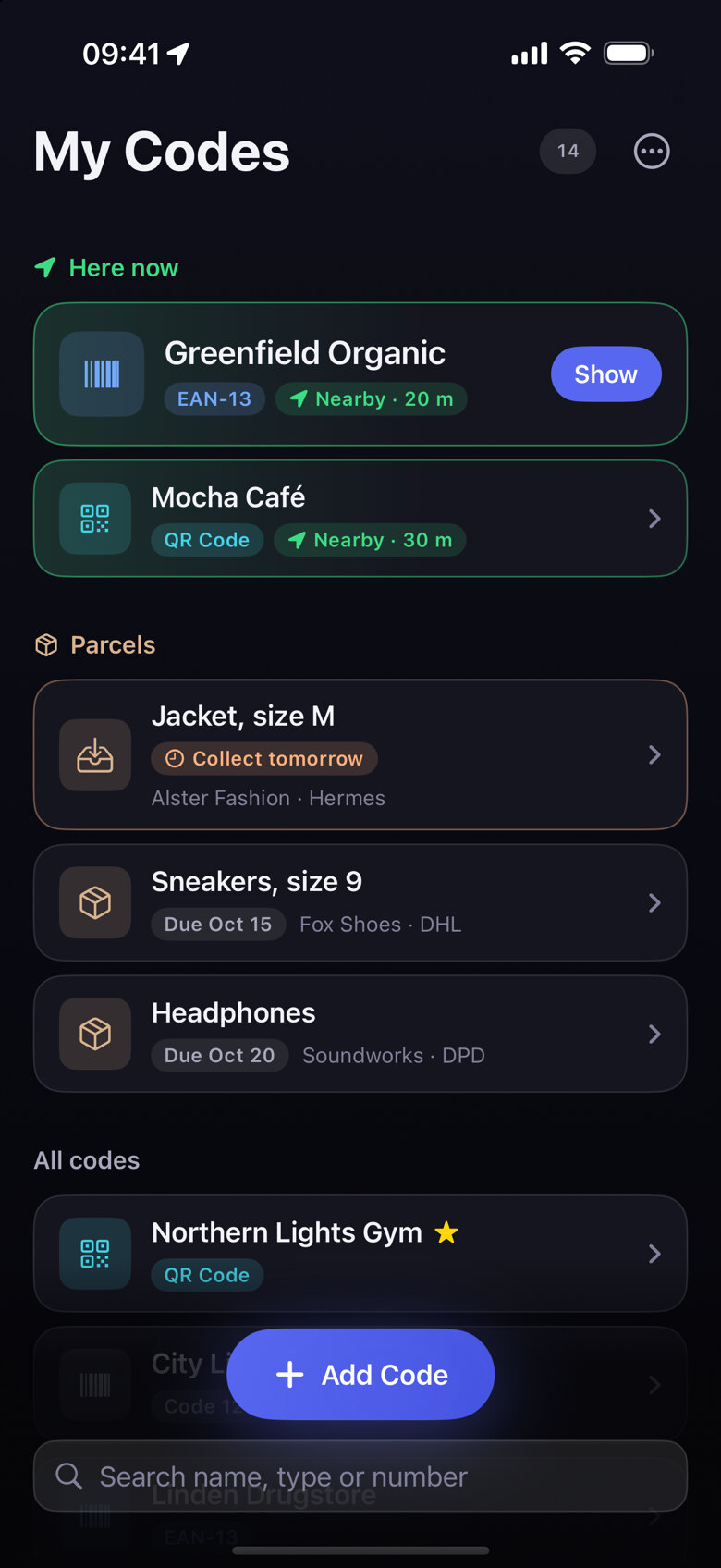
Every code, one place
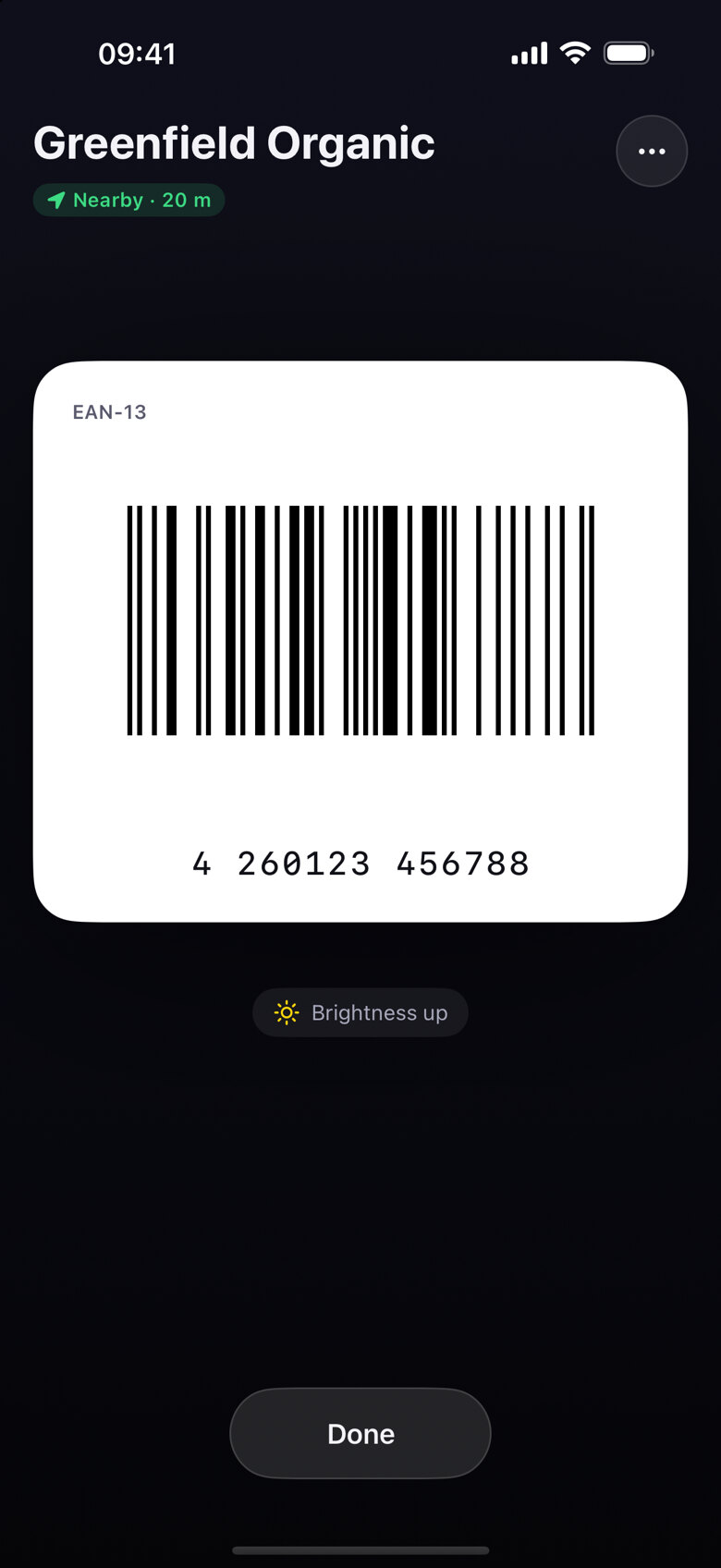
Loyalty cards, memberships, QR codes and barcodes. Scan with the camera, pull from a screenshot or type it in. Codes are drawn exactly, bright and large, so the scanner at the till reads them first time.
Ready when you arrive
Link a card to your shop. When you're there, it moves to the top, and if you like, a notification opens it directly.
Returns, handled
Save return and pickup codes as one-time codes, with what's inside and the deadline. CodeBeep reminds you in time and clears the code once it's done.
No sign-up, no ads. Open it and go.
Help
The till won't read my code.
Hold the iPhone steady, about 10 to 20 cm from the scanner. CodeBeep turns the brightness up automatically while a code is shown. If it still won't scan, the number under the code can be typed in at the till.
Can I add a code from an email or a screenshot?
Yes. Take a screenshot of the code, tap “Add Code” in CodeBeep and then “Choose Photo”. If the image contains several codes, pick the one you want.
How do one-time codes for returns work?
When adding, choose “Use once”, enter what's in the parcel and, optionally, the deadline. For return labels from known carriers, “Use once” is already selected. After dropping it off, tap “Mark as Done”. The code leaves your list and stays under “Recently Done” for a while.
I'm getting a new iPhone. How do I take my codes along?
In “Data & Backup” you can export your codes to a file and import it on the new iPhone. An iPhone backup via iCloud or a computer usually includes them as well.
Why does the app ask for my location?
Only when you link a card to a place, so CodeBeep can show it when you're there. Without a linked place, the app doesn't use location. Details are in the privacy policy.