
Scan.
Beep.
Done.
Loyalty cards, barcodes and return codes in one app. And when you walk into the shop, the right code is already on top.
Download on the App Store For iPhone · English and German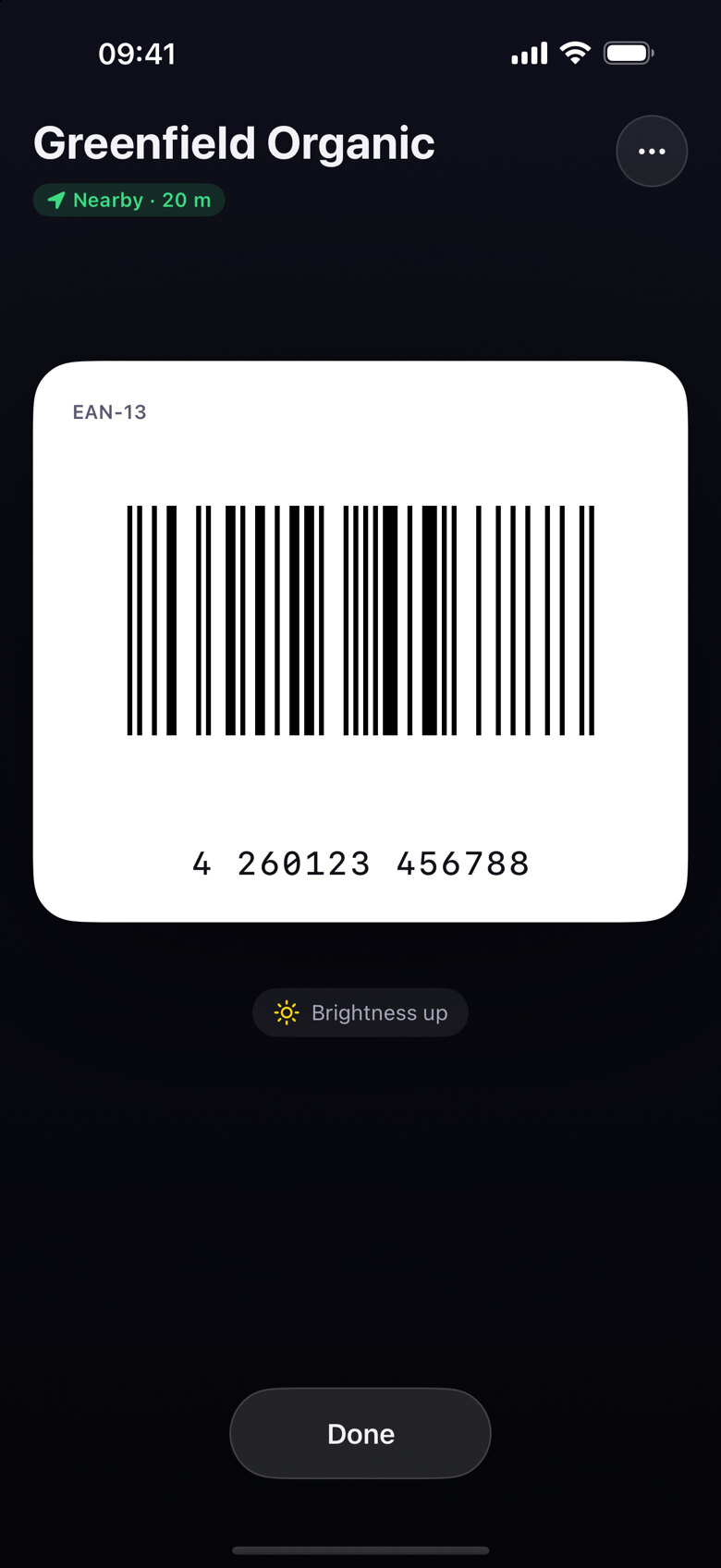
Returns, handled
Save return and pickup codes with what’s inside and the deadline: scan the label or share a screenshot. A ring shows the days left, CodeBeep reminds you in time, and after drop-off you tap Done.
Every code, one place
Loyalty cards, memberships, QR codes and barcodes. Every card gets its colour, and every code is drawn in its real format, bright and large, so it beeps at the till first time. Cards without a barcode are saved with their number, and you can keep a photo of any card. On Apple Watch you have every code with you, even without your iPhone, and your favourite code sits right on your watch face.
Ready when you arrive
Link a card to your shop. When you’re there, it sits on top of the stack, and if you like, a notification opens it directly. As a widget too.
No sign-up, no ads. Open it and go.
Help
The till won't read my code.
Hold the iPhone steady, about 10 to 20 cm from the scanner. CodeBeep turns the brightness up automatically while a code is shown. If it still won't scan, the number under the code can be typed in at the till.
Can I add a code from an email or a screenshot?
Yes. Take a screenshot of the code, tap “Scan” in CodeBeep and then “Photo”. Or share the screenshot straight to CodeBeep. If the image contains several codes, pick the one you want.
My card has no barcode, only a number.
Tap “Scan”, then “Manual” and choose “Number only”. Enter the number as it is printed on the card. CodeBeep shows it large so you can read it out at the till or have it typed in.
Can I keep a photo of my card?
Yes, one for each loyalty card. Open the code, tap ••• and then “Add Card Photo”. “Scan Card” takes it straight and neatly cropped, or you pick a picture from your photos. Then open it with “Card photo” below the code.
How do one-time codes for returns work?
Scan the code on the label and choose “Use once”, enter what's in the parcel and, optionally, the deadline. For return labels from known carriers, “Use once” is already selected. After dropping it off, open the code and tap “Done”. It leaves your list and stays for 14 days behind “Done” in the section header.
I'm getting a new iPhone. How do I take my codes along?
In “Data & Backup” you can export your codes to a file and import it on the new iPhone. An iPhone backup via iCloud or a computer usually includes them as well.
How do my codes get onto Apple Watch?
Open CodeBeep on your iPhone once while the watch is connected. The app sends your codes to the watch, and from then on the watch shows them even without your iPhone nearby. Changes arrive as soon as both are connected again. If CodeBeep isn't on the watch yet, install it in the Watch app on your iPhone under “Available Apps”.
How do I put a code on my watch face?
Touch and hold the watch face, tap “Edit” and choose CodeBeep for a complication. Pick the code you want there, or “Automatic” for your first pinned code. Tap the complication to open that code straight away. The watch face only shows the name and colour; the code itself appears in the app.
Why does the app ask for my location?
Only when you link a card to a place, so CodeBeep can show it when you're there. Without a linked place, the app doesn't use location. Details are in the privacy policy.